

This guide walks you through managing your validator’s reward allocations using BeraChef via FoundryDocumentation Index
Fetch the complete documentation index at: https://berachain-422fce37-feat-nodes-section-reno.mintlify.app/llms.txt
Use this file to discover all available pages before exploring further.
cast and the BeraHub UI.
Requirements
- Active Validator Node
- Validator Operator Wallet Address & Private Key
- Validator PubKey
- Foundry using
cast
Understanding reward allocations
Each validator can customize how their rewards are distributed across different reward vaults. If no custom allocation is set, a default allocation is used. Key concepts:- Reward allocations must total 100% (10000 basis points)
- Only whitelisted vaults can receive allocations
- Changes require queuing and a delay period before activation
- Current delay: 500 blocks
Option A - Using Foundry CLI
Step 1 - Check active allocation
Start by checking your validator’s current reward allocation:RewardAllocation struct, a tuple containing:
- The allocation start block
- An array of tuples, each containing the vault address and the percentage numerator (adding up to
10000)
Step 2 - Queue new allocation
An example command to queue a new allocation resembles the following:Your
START_BLOCK must be greater than the current block number + the block delay (500 blocks).Step 3 - Check your queued allocation
Check your new pending allocation:startBlock is reached, the new allocation will be automatically activated the next time rewards are distributed for your validator.
Option B - Using BeraHub UI
You can also manage your reward allocations through the Berachain Dashboard: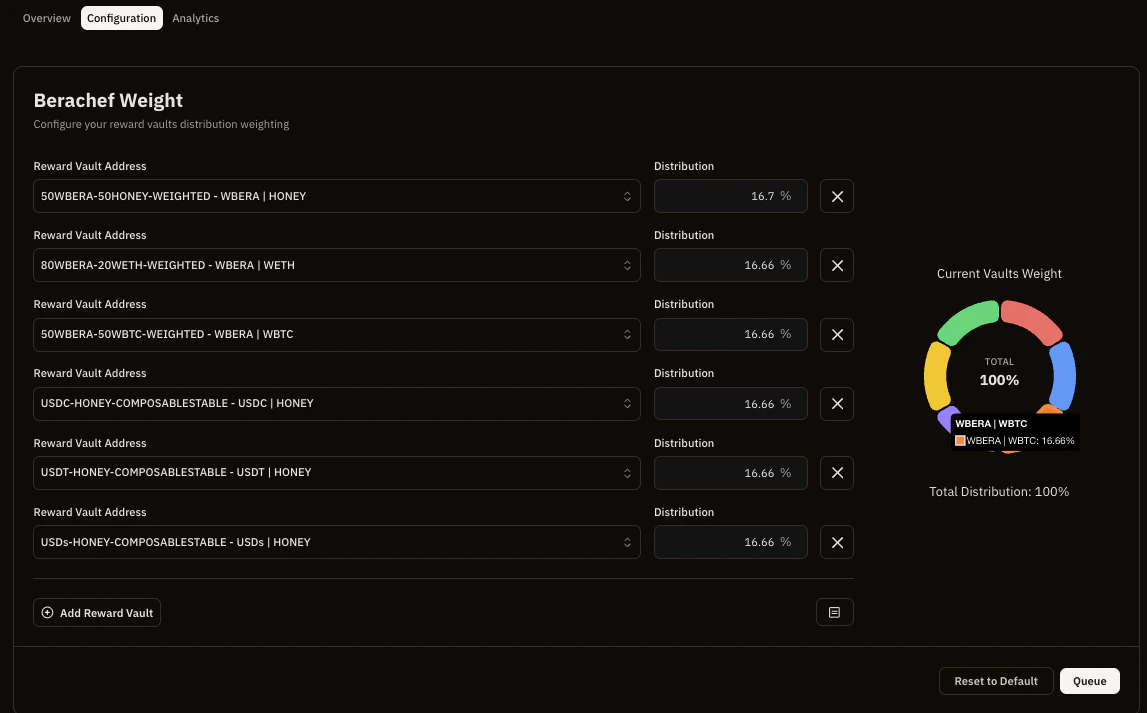
- Navigate to the Validator Dashboard on Berachain Hub
- Connect your validator operator wallet
- Click Manage as a validator
- Click the Configuration tab
- Select your vaults and choose desired allocation percentages (ensuring they add up to 100%)
- Click Queue and submit the transaction